
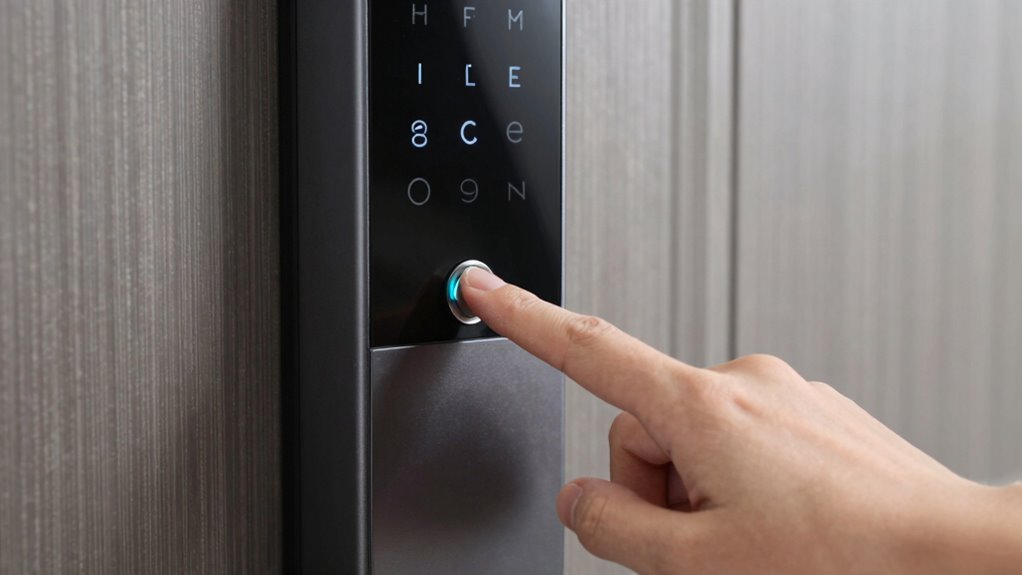

To prevent surprise entries after separation, you need to reset your smart lock to wipe all previous users and permissions. Follow the manufacturer’s instructions to perform a factory reset, which typically involves pressing a reset button or using the app. After resetting, remove old users and set new access codes or keys for trusted people. Doing this ensures your home stays secure—continue to explore how to manage your lock effectively for ongoing safety.
Key Takeaways
- Perform a factory reset to remove all previous user data and access codes.
- Reconnect the lock to your app and set new, trusted user permissions.
- Change default passwords and enable two-factor authentication for added security.
- Regularly review activity logs to detect any unauthorized attempts or surprises.
- Update firmware and security settings to prevent future unauthorized entries after reset.
Why Resetting Your Smart Lock Is Critical for Your Security
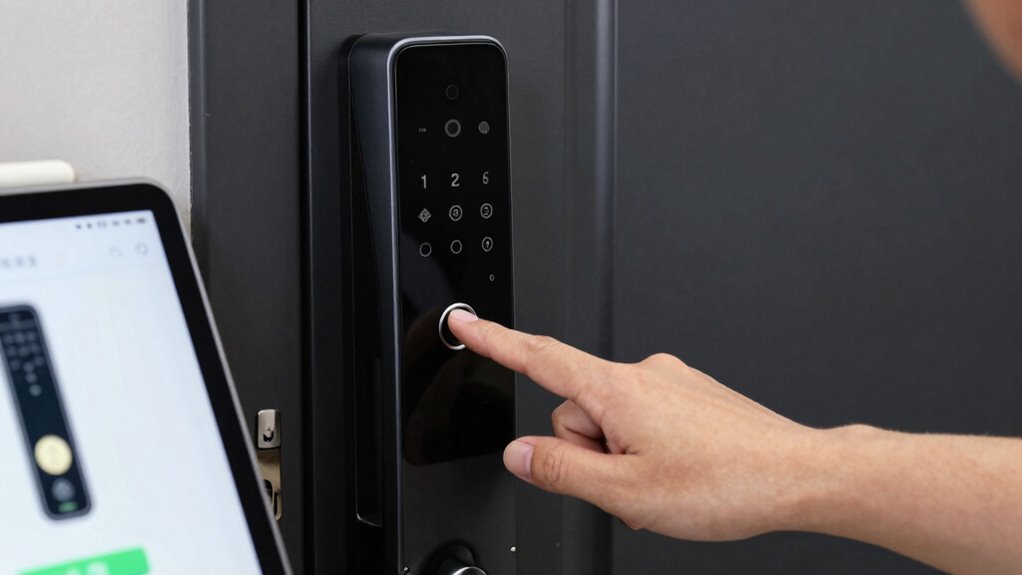
Resetting your smart lock after a separation is essential to protect your home’s security. When you change access control by removing previous users, you prevent unauthorized entries. Resetting guarantees that old codes or shared access rights no longer work, giving you control over who enters your home. It also simplifies user management, allowing you to add new users or revoke permissions seamlessly. Without resetting, former partners or tenants might still have access, creating security risks. By performing a reset, you eliminate any lingering access that could compromise your safety. This proactive step guarantees only trusted individuals can unlock your door, giving you peace of mind. Protect your home by resetting your smart lock whenever your situation changes, ensuring your security remains intact. Understanding the importance of access control can help you make informed security decisions.]
How to Factory Reset Your Smart Lock in Easy Steps
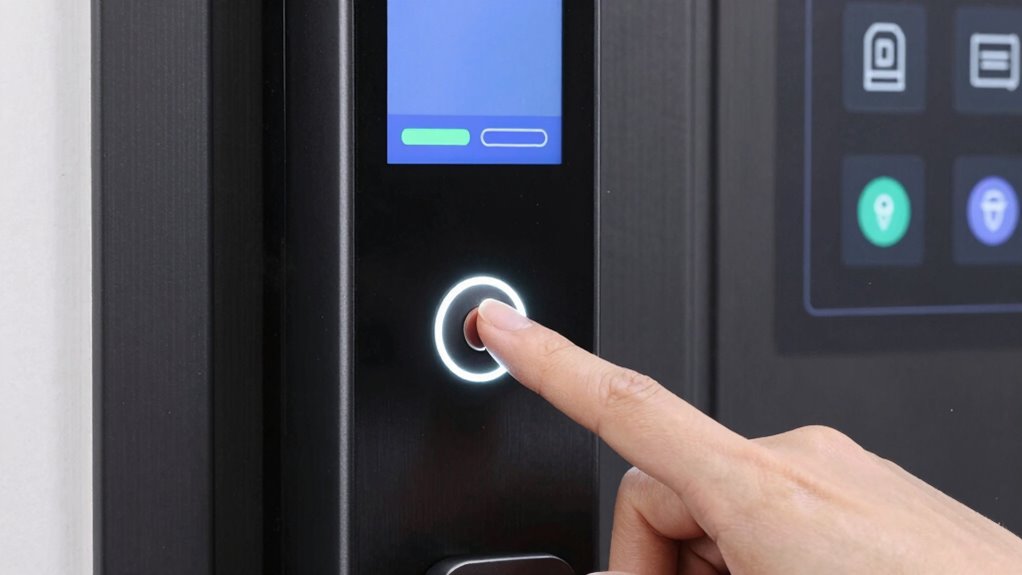
Performing a factory reset on your smart lock is a straightforward way to start fresh, especially after changing access permissions. First, confirm your lock is compatible with the reset process—check the manufacturer’s instructions or app. Usually, you’ll find a reset button or a specific combination of buttons to press and hold for several seconds. This clears all user data and restores default settings. Before resetting, consider your battery replacement options; some locks require fresh batteries to function properly after the reset. Once reset, you’ll need to reconnect your lock to your Wi-Fi or Bluetooth network and reconfigure your access codes or keys. Following these steps ensures your smart lock is ready for new users and prevents any unwanted surprise entries. Additionally, understanding digital safety practices can help you maintain control over your smart devices and enhance overall security. Also, reviewing manufacturer instructions can ensure the reset process is performed correctly and safely. To prevent future issues, familiarize yourself with smart lock security features to optimize protection after resetting. Being aware of firmware updates is also important, as they can patch vulnerabilities and improve device performance.
How to Remove Old Users and Manage Access After Reset

After you’ve completed a factory reset on your smart lock, it’s essential to eliminate any old users and update access permissions to guarantee security. Start by accessing your lock’s app or control panel, then navigate to the user access or permission management section. Remove all previous user profiles to prevent unauthorized entries. Next, set new access permissions for trusted individuals, whether through digital keys, PIN codes, or Bluetooth. Regularly reviewing and updating user access ensures only authorized people can unlock your door. Keep in mind that after a reset, the lock treats all previous users as revoked, so double-check that only current users have access. Proper permission management helps maintain security and peace of mind in your home. Additionally, performing a wave and wind check on your smart lock can help identify potential vulnerabilities related to environmental factors. Understanding security protocols can further enhance your home’s safety, especially after resetting the device. It’s also advisable to update firmware to ensure the lock remains protected against emerging threats, which is crucial for maintaining device integrity. Regularly testing your lock’s connectivity can help ensure it functions reliably and securely.
Troubleshooting Reset Problems and Ensuring Your Lock Is Secure
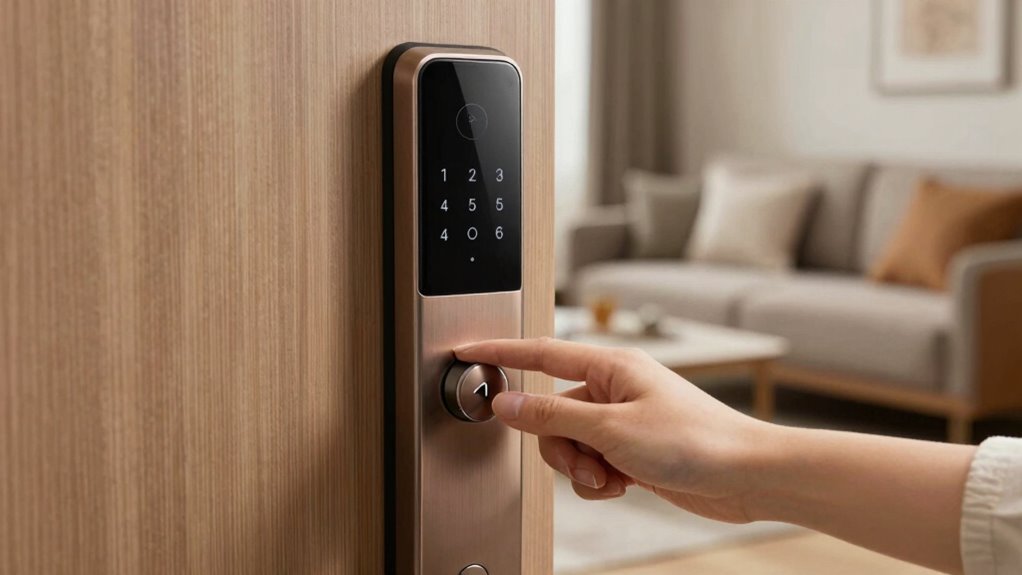
Even with careful troubleshooting, you might encounter issues when resetting your smart lock, such as the device not completing the reset process or becoming unresponsive. If that happens, start by checking if a firmware update is available, as outdated software can cause reset problems. Confirm the lock’s firmware is current to improve stability and security. If you’re locked out due to forgotten access codes, look for access code recovery options provided by your manufacturer, which may involve verifying your identity or resetting through the app. Sometimes, a complete power cycle or factory reset is necessary to resolve unresponsive devices. Always verify that the reset was successful and that the lock responds to new access codes, ensuring your lock remains secure and functioning properly after troubleshooting. Regular maintenance practices can help prevent such issues and keep your smart lock working reliably, including checking the lock’s software updates periodically to ensure optimal performance. Additionally, understanding the reset procedures specific to your lock model can save time and prevent accidental misconfigurations, especially as emerging trends in smart lock technology continue to evolve, making it important to stay informed about the latest features and security measures.
Best Security Practices to Follow After Resetting Your Smart Lock
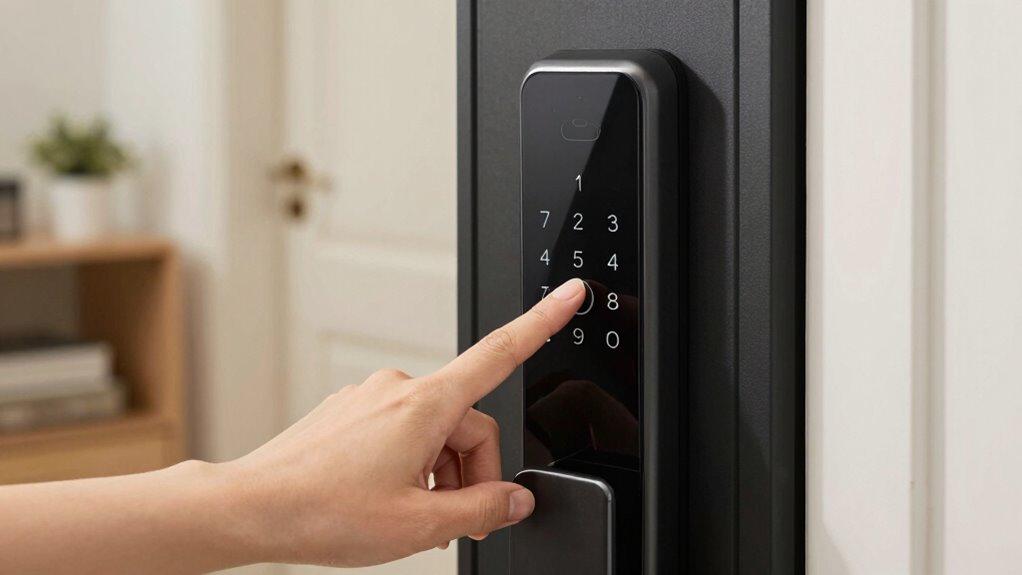
Resetting your smart lock offers a fresh start, but it also means you need to reinforce your security measures immediately. To guarantee your home stays protected, start by updating your access code changes and reviewing user management. Remove any users who no longer need access and add new ones if necessary. This minimizes the risk of unauthorized entry. Additionally, change your default passwords and enable two-factor authentication if available. Regularly monitor activity logs to detect suspicious activity. Consider setting temporary codes for guests or service providers rather than sharing permanent ones. Finally, update your lock’s firmware to fix vulnerabilities and improve security features. These steps help you maintain control and prevent surprises, giving you peace of mind after a reset. Remember, security best practices are essential to keep your smart lock effective and your home safe. Incorporating security system integration can further enhance your home’s protection, especially when considering the importance of home security awareness learned from experts like Rebecca Romney. Staying informed about security zone info can help you better understand potential vulnerabilities and protect your property effectively.
Frequently Asked Questions
Can I Reset My Smart Lock Remotely Without Physical Access?
Yes, you can perform a remote reset on your smart lock if it supports remote management through an app or cloud service. However, if remote reset isn’t available, you may need to use a manual override to reset the lock physically. Keep in mind, some smart locks require physical access for security reasons, so check your lock’s features to see if a remote reset is possible without needing to do a manual override.
How Often Should I Perform a Reset After Separation?
Think of resetting your smart lock like changing the locks on a gate—it’s about keeping unwanted visitors out. You should perform a reset after separation whenever your security protocols demand it, typically within a week or two of ending a relationship or shared access. Regular reset frequency guarantees your lock remains secure, preventing surprise entries. Stay vigilant and reset as needed, especially if you suspect someone still has access or if circumstances change.
Will Resetting Erase All Historical Access Data?
Resetting your smart lock will erase all access history and data retention records. You won’t be able to see who entered or attempted entry after the reset. This step is essential for security if you’ve separated from someone using the lock. To guarantee your data is cleared and your lock is secure, perform the reset promptly. Keep in mind, all previous access data will be permanently deleted during this process.
Is There a Risk of Bricking My Smart Lock During Reset?
You have about a 1 in 10 chance of bricking your smart lock during reset if you’re not careful. While firmware corruption is rare, improper resets can lead to hardware damage, making your lock unresponsive. To avoid this, follow the manufacturer’s instructions precisely. If you’re unsure, consider contacting support. Proper reset procedures considerably reduce the risk of hardware damage and ensure your lock functions smoothly afterward.
How Do I Verify My Lock’s Security After Completing a Reset?
After completing the reset procedures, you should verify your lock’s security by testing all access methods, like keypad or app controls. Confirm that only authorized users can open it and that previous codes or credentials no longer work. You can also check the lock’s activity logs if available. This confirms your security verification, guaranteeing the reset was successful and that your lock is now secure from unauthorized access.
Conclusion
Resetting your smart lock after a separation is essential—did you know that over 60% of home burglaries involve unlocked or compromised locks? By following the right reset procedures, you can prevent surprise entries and keep your home secure. Always remove old users and update access, then double-check that your lock is functioning properly. Staying proactive with security practices guarantees your peace of mind and helps protect what matters most.